



Connect NailongVPN on iPhone / iPad
With Shadowrocket: 4 steps, about three minutes.
Paid App Store app · purchased separately
Trouble installing?
Shadowrocket is a separate purchase. If the App Store cannot find it, it is not offered in your Apple account's region.
Copy the general subscription
Sign in and copy the Shadowrocket / general subscription link under My connection.
Download the subscription
Open Config at the bottom, tap + at the top right, paste the link and tap Download.
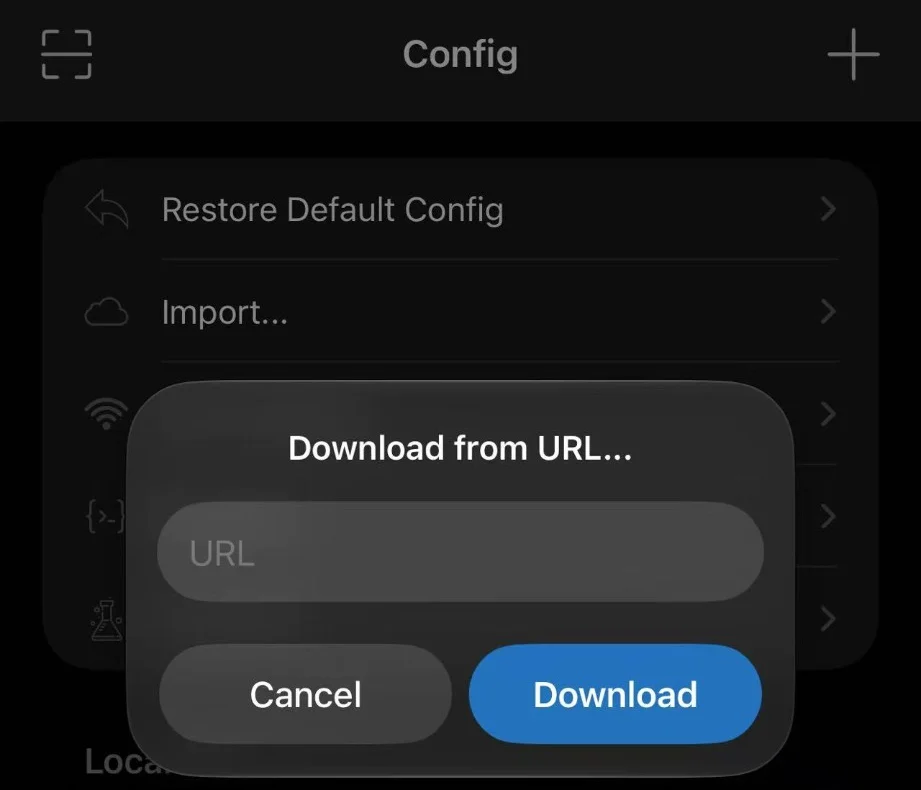
Screenshot · iPhone1On Config, tap + at the top right2Paste the general subscription3Tap Download Select a node
Back on Home, tap the first node, NailongVPN · TUIC. If it will not connect, try HY2, Reality, then Trojan.
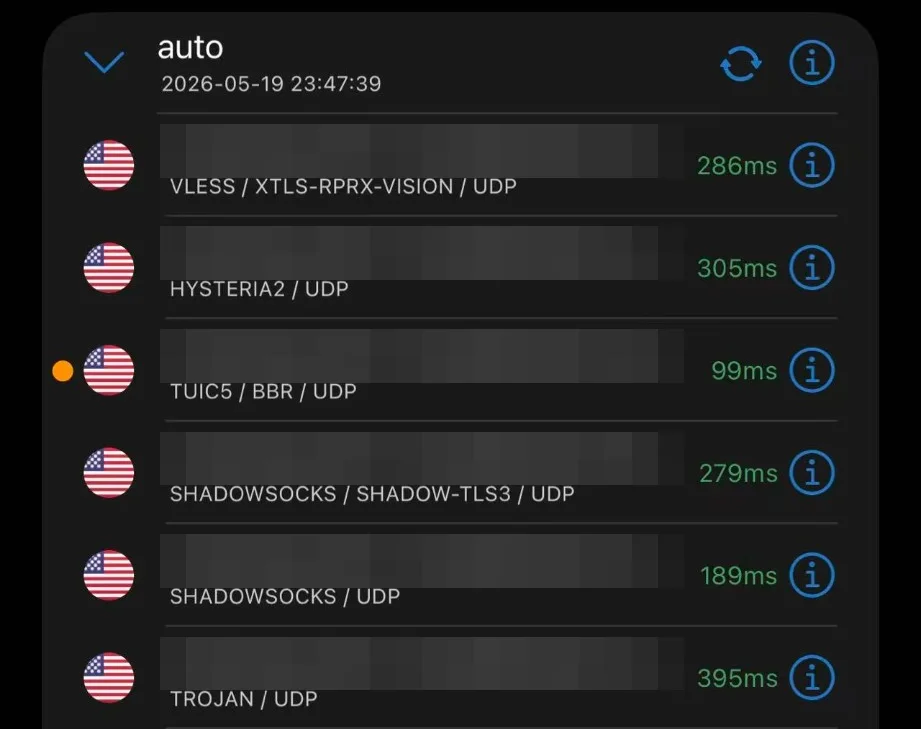
Screenshot · iPhone1Tap a row to select it; the orange dot marks the current nodeSample from another subscription, node names masked Connect
Turn on the switch at the top. On first use, allow the system prompt to add a VPN configuration.
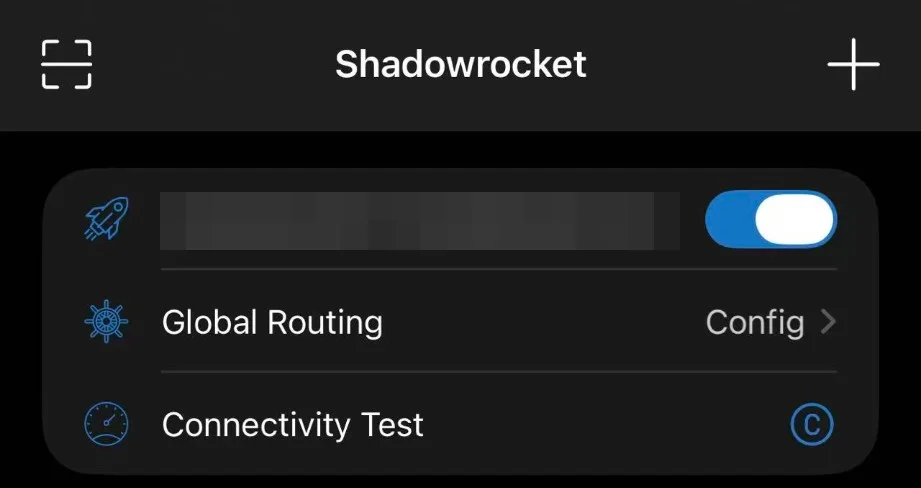
Screenshot · iPhone1Turn this switch on and allow the system prompt on first use
Once connected, open the IP check. A US exit means you're done.
Can't connect?
Import fails or the format is rejected
Check that you copied the complete link in the right format: the general subscription for Shadowrocket, the Clash subscription for Clash Verge Rev and FlClash. If it still fails, check whether your plan has expired or run out of data.
The profile imports but no nodes appear
Update the subscription and make it the current profile. If the client reports an unsupported protocol, update the client.
TUIC or HY2 times out but Trojan works
TUIC and HY2 use UDP, which your network may restrict. Auto in Clash moves to Reality or Trojan by itself; in Shadowrocket pick Reality or Trojan.
Latency tests work but web pages do not
Check that the connection switch or System Proxy is on and a NailongVPN node is selected. In Global mode, also select NailongVPN under GLOBAL.
The browser works but another app does not
That app probably ignores the system proxy. Set a proxy inside the app, or turn on TUN Mode.
Certificate errors, or no internet after closing the client
For certificate errors, check your device clock and keep certificate verification on. If the internet stops after you quit the client, the system proxy still points at it: reopen the client and turn System Proxy off.
Questions
Should I use Rule, Global or Direct mode?
Keep the default Rule mode. Global mode needs a node selected under GLOBAL; Direct mode does not use NailongVPN at all.
Is the exit a residential IP?
No. NailongVPN uses US datacenter exits, and third-party sites may classify or score them differently.
Does connecting guarantee access to every AI service?
No. Each platform decides which models and features you can use. NailongVPN plans do not include any platform's membership or API credits.
What do I do after renewing, changing devices or replacing my link?
Renewing keeps the same link; just update the subscription in your client. On a new device, import again. Replacing the link invalidates the old one immediately, so reimport on every device. Node passwords do not change with it; contact support if your credentials leaked.
Can I share my subscription link with a friend?
No. The link contains your personal credentials. Friends need their own account; to invite one, use the referral link in your workspace.
Still stuck? Sign in and open a ticket, with your device, client version and the error text.